Subscribe:

Monday, 7 April 2014

How to set up Video Chat in Facebook

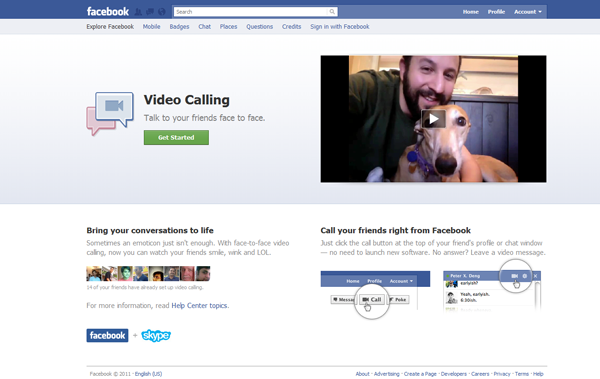
Video chat facility on Facebook powered by Skype is now available to use. You can easily install and intergrate Facebook video chat option in your Facebook account.

To do so, follow these simple steps given below:

  • Go to this URL, and click on get started.


  • Suddenly your Chat interface will be changed and it will prompt your to set up few things.
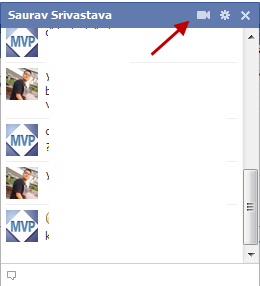
  • Now click on Cam symbol appearing on chat window of  any of your friend.


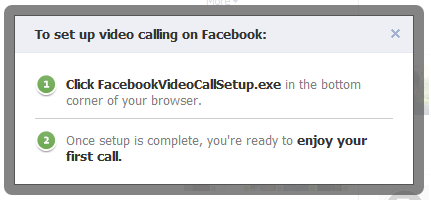
  • A notification will appear and guide you to download the facebookvideochat.exe plugin on your computer.

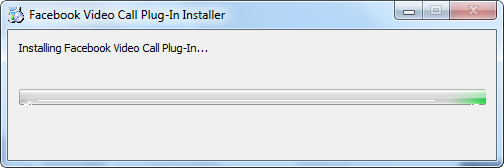
  • Now wait until the plugin will get installed.


  • And its all done now, click on the Cam symbol to make a video call.
  • Once your friend will answer the call, you will start seeing each other.

It’s all done! Now enjoy the video calling with your Facebook friends and family easily.

How To Add Facebook Like Box In Blogger Blog


When you start your Facebook page you ask your friends and family members to like it and after that it all depends upon the content you write. If people like your content they will voluntary like your Facebook page. But still you need to provide them with an easy method of doing this. Facebook like box allows your visitors to join you easily and they don't have to find you manually. Facebook developers have made this thing very easy to integrate a Facebook like box in to your Blog by adding a few lines of code in it. No let us take a look at the steps you need to follow.


How To Add Facebook Like Box In Blogger Blog.
  • This process includes the editing of your Blog's template, so it is recommended to take a backup of your Blog. First click on the template from your Blogger Dashboard. Then click on Backup/Restore and download the template from the pop-up window.
  • Now that you have taken the backup, you are ready for the process. Visit the FacebookDevelopers.
  • You will see a window like the one shown below.


  • Customize the look and feel, height, width of your Like box from this window.
  • Uncheck the show stream if you don't want the latest posts with this widget.
  • Uncheck the header checkbox if you don't want to display "Find us on Facebook".
  • Once you are done with the customization, click on Get code. It would pop-up a window like the one shown below.


  • Click on Edit template from the Blogger dashboard. Copy the code 1 from the above window and paste it just after the <body> tag.
  • Now save the template and click the Layout button.
  • Click on add a gadget from your sidebar. Add HTML/JavaScript gadget and Paste the code 2 in it.
  • Now you are done. Save the arrangement and click on View Blog.

  • You just added a Facebook like Box in your Blog. If you need any help you can comment here. You should also see other Blogging and SEOtips on Unziptech, it will help you improve your Blogging experience.
  • If you like my work; you can show your regards by hitting Facebook like button, following us on Google+ or Twitter, stumbling our posts on stumble upon or giving us a link back via the links below. Stay tuned for more tech updates.

Add Flipper Sharing Widget Below Every Post In Blogger


How To Add Flipper Sharing Widget Below Every Post In Blogger?
  • First for All Go To Blogger.com > Design > Edit Html
  • Find <data:post.body/> Using CTRL+F
  • Copy the code below and paste it just after <data:post.body/> tag 

<style>
/*--------Flipper Sharing Widget ------*/
.flipper a {
display:block;
height:48px;
width:48px;
padding:0 4px;
float:left;
background:transparent url(https://blogger.googleusercontent.com/img/b/R29vZ2xl/AVvXsEiwu1g08DLRFDIW3LIJ9nSVLTGA3Ia0lDpXmFa6CQqqO0bMrhn-9XawWxejBXR_xFekZOTVLWtKG1qilDeSqXNwiCAvFeLZqny5wPDFUnrx3Z2bI1SnrS2iLEZsC9T22rcRRSdu5Ie1FYbz/s1600/flipper.png) no-repeat;
-webkit-transition: ease-in 0.15s all;   
-moz-transition: ease-in 0.15s all;   
-o-transition: ease-in 0.15s all;   
-ms-transition: ease-in 0.15s all;   
transition: ease-in 0.15s all;
cursor:pointer;
}
.flipper a.googleplus {
background-position: 0px -348px;
}
.flipper a.googleplus:hover {
background-position: 0px -406px;
}
.flipper a.pinterest {
background-position: 0px -464px;
}
.flipper a.pinterest:hover {
background-position: 0px -522px;
}
.flipper a.delicious {
background-position: 0px 0px;
}
.flipper a.delicious:hover {
background-position: 0px -58px;
}
.flipper a.digg {
background-position: 0px -116px;
}
.flipper a.digg:hover {
background-position: 0px -174px;
}
.flipper a.stumbleupon {
background-position: 0px -812px;
}
.flipper a.stumbleupon:hover {
background-position: 0px -870px;
}
.flipper a.technorati {
background-position: 0px -928px;
}
.flipper a.technorati:hover {
background-position: 0px -406px;
}
.flipper a.twitter {
background-position: 0px -928px;
}
.flipper a.twitter:hover {
background-position: 0px -986px;
}
.flipper a.facebook {
background-position: 0px -232px;
}
.flipper a.facebook:hover {
background-position: 0px -290px;
}
.flipper a.reddit {
background-position: 0px -580px;
}
.flipper a.reddit:hover {
background-position: 0px -638px;
}
.flipper a.rss {
background-position: 0px -696px;
}
.flipper a.rss:hover {
background-position: 0px -754px;
}
.Pleaseshare{
margin:10px 0px;
color:#333333;
font-weight:bold;
font-size:20px;
font-family:sans-serif;
}
</style>
<div class='flipper'>
<b:if cond='data:blog.pageType == &quot;item&quot;'>
<div class="Pleaseshare">
Please Share it! :) </div>
<!--Google Plus-->
<a class='googleplus' expr:href='&quot;http://plus.google.com/share?url=&quot; + data:post.url' rel='external nofollow' target='_blank' title='+1 it :&gt;'/>
<!--Facebook-->
<a class='facebook' expr:href='&quot;http://www.facebook.com/sharer.php?u=&quot; + data:post.url + &quot;&amp;t=&quot; + data:post.title' rel='external nofollow' target='_blank' title='Share this on Facebook :&gt;'/>
<!-- Twitter -->
<a class='twitter' expr:href='&quot;http://twitthis.com/twit?url=&quot; + data:post.url + &quot;&amp;title=&quot; + data:post.title' rel='external nofollow' target='_blank' title='Tweet this :&gt;'/>
<!-- Pinterest -->
<a class='pinterest'  href="http://pinterest.com/" rel='external nofollow' target='_blank' title='Pin it :&gt;'/>
<!-- Delicious -->
<a class='delicious' expr:href='&quot;http://del.icio.us/post?url=&quot; + data:post.url + &quot;&amp;title=&quot; + data:post.title' rel='external nofollow' target='_blank' title='Add this to Delicious :&gt;'/>
<!--DIGG-->
<a class='digg' expr:href='&quot;http://digg.com/submit?phase=2&amp;url=&quot;  + data:post.url' rel='external nofollow' target='_blank' title='Digg this :&gt;'/>
<!--Stumble-->
<a class='stumbleupon' expr:href='&quot;http://www.stumbleupon.com/submit?url=&quot; + data:post.url + &quot;&amp;title=&quot; + data:post.title' rel='external nofollow' target='_blank' title='Stumble this :&gt;'/>
<!-- Reddit -->
<a class='reddit' expr:href='&quot;http://reddit.com/submit?url=&quot; + data:post.url + &quot;&amp;title=&quot; + data:post.title' rel='external nofollow' target='_blank' title='Add this to Reddit :&gt;'/>
<!--RSS -->
<a class='rss' expr:href='data:blog.homepageUrl + &quot;feeds/posts/default&quot;' title='Bookmark plz :&gt;'/>
</b:if></div>
<div style="clear:both"/>
To Change The Color Of The Text That Appears On The Top Of The Widget Edit #333333

Add Simple Subscribe Via Email Box Widget To Blogger

How To Add Simple Subscribe Via Email Box ?
  • First for All Go To Blogger.com > Design > Page Elements > Add a Gadget
  • Choose HTML/JavaScript from the list of the gadgets
  • Copy and paste the code below in the content box.
<style>
.rb-email{
background:url(https://blogger.googleusercontent.com/img/b/R29vZ2xl/AVvXsEj9130zUL5GCwmEatrdzG5kC0rI2Zr9tYnyiUnHlfj19WeoKMa6pnuEC3fiNHH2uBTlVOaHv3jij9zqCh_joWlf2cdGFgreHs-l_z3al2elwLPmJsD4VXWR7Siw7hyI0wIyfxn1MAE8_ZWU/s1600/email.png) no-repeat 0px 12px ;
width:300px;
padding:10px 0 0 55px;
float:left;
font-size:1.4em;
font-weight:bold;
margin:0 0 10px 0;
color:#686B6C;
}
.rb-emailsubmit{
background:#9B9895;
cursor:pointer;
color:#fff;
border:none;
padding:3px;
text-shadow:0 -1px 1px rgba(0,0,0,0.25);
-moz-border-radius:6px;
-webkit-border-radius:6px;
border-radius:6px;
font:12px sans-serif;
}
.rb-emailsubmit:hover{
background:#E98313;
}
.textarea{
padding:2px;
margin:6px 2px 6px 2px;
background:#f9f9f9;
border:1px solid #ccc;
resize:none;
box-shadow:inset 1px 1px 1px rgba(0,0,0,0.1);
-moz-box-shadow:inset 1px 1px 1px rgba(0,0,0,0.1);
-webkit-box-shadow:inset 1px 1px 1px rgba(0,0,0,0.1); font-size:13px;
width:170px;
color:#666;}
</style>
<div class="rb-email">
Subscribe via Email
<form action="http://feedburner.google.com/fb/a/mailverify" id="feedform" method="post" target="popupwindow" onsubmit="window.open('http://feedburner.google.com/fb/a/mailverify?uri=Yaqoobzone', 'popupwindow', 'scrollbars=yes,width=550,height=520');return true">
<input gtbfieldid="3" class="textarea" name="email" onblur="if (this.value == &quot;&quot;) {this.value = &quot;Enter email address here...&quot;;}" onfocus="if (this.value == &quot;Enter email address here...&quot;) {this.value = &quot;&quot;;}" value="Enter email address here..." type="text" />
<input type="hidden" value="pctrickstou" name="uri"/><input type="hidden" name="loc" value="en_US"/>
<input class="rb-emailsubmit" value="Submit" type="submit" />
</form>
</div>
  • Replace pctrickstou with your feed title/username

Add Stylish Subscription Box With Social Media Buttons Below Each Post In Blogger

Adding subscription box below your each post is another best way of increasing your blog subscribers. This widget comprises of a subscription box, RSS link, twitter link, facebook link, and google + link. It will appear at the bottom of your post and this is one of the best way to get your readers attention.

How To Add Stylish Subscription Box With Social Media Buttons Below Each Post In Blogger ?
  • First for All Go To Blogger.com > Design > Edit Html
  • Find <data:post.body/> Using 
  • CTRL+F
  • Copy the code below and paste it just after <data:post.body/> tag 
<b:if cond='data:blog.pageType == &quot;item&quot;'>
<style>
form.feedburner{
margin:20px 0 0;
display:block;
clear:both;
}
.RBstyle{
background:url(https://blogger.googleusercontent.com/img/b/R29vZ2xl/AVvXsEjeyuQgPVzpoHb3WJHg8rzpIq73-kVnbSBcl91A_QKQqH6I4LYeWp4RmCZ0i5-OYXIrpXJgr6RaNTgJcArQqnPipiwc90X4kpfQEn7RT_Unv44B4XPZCk7LheJ-SaWqdoWwGjjLJ7NWYzC7/s400/email_icon.png) no-repeat scroll 4px center transparent;
padding:7px 15px 7px 35px;
color:#666;
font-weight:bold;
text-decoration:none;
border:1px solid #D3D3D3;
-moz-border-radius: 4px;
-webkit-border-radius: 4px;
border-radius: 4px;
-moz-box-shadow: 1px 1px 2px #CCC inset;
-webkit-box-shadow: 1px 1px 2px #CCC inset;
box-shadow: 1px 1px 2px #CCC inset;
}
.RBsubmit{
color:#666;
font-weight:bold;
text-decoration:none;
padding:6px 15px;
border:1px solid #D3D3D3;
cursor: pointer;
-moz-border-radius: 4px;
-webkit-border-radius: 4px;
-goog-ms-border-radius: 4px;
border-radius: 4px;
background: #fbfbfb;
background: -moz-linear-gradient(top, #fbfbfb 0%, #f4f4f4 100%);
background: -webkit-gradient(linear, left top, left bottom, color-stop(0%,#fbfbfb), color-stop(100%,#f4f4f4));
background: -webkit-linear-gradient(top, #fbfbfb 0%,#f4f4f4 100%);
background: -o-linear-gradient(top, #fbfbfb 0%,#f4f4f4 100%);
background: -ms-linear-gradient(top, #fbfbfb 0%,#f4f4f4 100%);
filter: progid:DXImageTransform.Microsoft.gradient( startColorstr=&#39;#FBFBFB&#39;, endColorstr=&#39;#F4F4F4&#39;,GradientType=0 );
background: linear-gradient(top, #fbfbfb 0%,#f4f4f4 100%);
}
#emailwidget-outer {
-moz-border-radius: 10px 10px 10px 10px;
-webkit-border-radius: 10px 10px 10px 10px;
-goog-ms-border-radius: 10px 10px 10px 10px;
border-radius: 10px;
background: none repeat scroll 0 0 transparent;
border: 1px solid #D3D3D3;
padding: 8px;
-moz-transition: all 0.3s ease-out;
-o-transition: all 0.3s ease-out;
-webkit-transition: all 0.3s ease-out;
-ms-transition: all 0.3s ease-out;
transition: all 0.3s ease-out;
width:480px;
}
#emailwidget-outer:hover{
background: none repeat scroll 0 0 #FFF;
-moz-box-shadow: 1px 1px 2px #CCC inset;
-webkit-box-shadow: 1px 1px 2px #CCC inset;
box-shadow: 1px 1px 2px #CCC inset;
}
#emailwidget-outer td{
padding:3px 0;
}
</style>
<center>
<div id='emailwidget-outer'>
<div id='emailwidget'>
<table style='border:none; margin: 0px 0px 0px 0px; padding: 0px 0px 0px 0px;' width='100%'>
<tbody>
<tr style='border:none; margin: 0px 0px 0px 0px; padding: 0px 0px 0px 0px;'>
<td align='left' style='border:none; margin: 0px 0px 0px 0px; padding: 0px 0px 0px 0px;'> <p style='color:#666; font-weight: bold; font-size: 22px; margin:0px 0px 5px 0px; '>Get free daily email updates!</p>
<form action='http://feedburner.google.com/fb/a/mailverify' class='feedburner' method='post' onsubmit='window.open(&apos;http://feedburner.google.com/fb/a/mailverify?uri=pctrickstou&apos;, &apos;popupwindow&apos;, &apos;scrollbars=yes,width=550,height=520&apos;);return true' style='margin: 0pt;' target='popupwindow'>
<input name='uri' type='hidden' value='Realcombiz'/>
<input name='loc' type='hidden' value='en_US'/>
<input class='RBstyle' name='email' onblur='if (this.value == &quot;&quot;) {this.value = &quot;Enter your email…&quot;;}' onfocus='if (this.value == &quot;Enter your email…&quot;) {this.value = &quot;&quot;}' type='text' value='Enter your email…'/>
<input alt='' class='RBsubmit' title='' type='submit' value='Submit'/>
</form>
</td>
<td style='border:none; margin: 0px 0px 0px 0px; padding: 0px 0px 0px 0px;'><p style='color:#666; font-weight: bold; font-size: 14px; margin:0px 0px 5px 0px; '>Follow us!</p>
<a href='http://feedburner.google.com/fb/a/mailverify?uri=pctrickstou' rel='nofollow' target='_blank' title='Suscribe to RSS Feed'><img src='https://blogger.googleusercontent.com/img/b/R29vZ2xl/AVvXsEgnbLYQ39A3GBbaTHvmYAluV0SZx-ZFMFvBd2tGNuoBve5gtlQDIrramGsVeu3WHA1FKNYXzZM-O9ks_PdFwQ8nByIm_Q8NeScSuXLXqaJv6Vezc_paizqH83Owk4Jp3BvIYzWMdyzXksw/s1600/rss-30×43.png'/></a>
<a href='http://twitter.com/poornagollakoti' rel='nofollow' target='_blank' title='Follow us on Twitter'><img src='https://blogger.googleusercontent.com/img/b/R29vZ2xl/AVvXsEjfwqMD6NhHYLEkmbSewBsIo_bbhyphenhyphensPTqGqYRaAaUPPqfDTZBZ2Mx_xDUFR0qY7eGtsQAuypb-kEFGRpUsxwQQyDqBghd5WI3LRuP1Dm51IwFKcgM5BfgrUoSTWJ6lkzcU8tT1d7AWeWZE/s1600/twitter-30×43.png'/></a>
<a href='http://www.facebook.com/HashmiWorld4U' rel='nofollow' target='_blank' title='Follow us on Facebook'><img src='https://blogger.googleusercontent.com/img/b/R29vZ2xl/AVvXsEi43PEMS40bNvdBJuDOAeY635qFAj4ToiASKua6tuT5gI6crMqe_Pj9BondMu4FSFlDkvQI8BSaiZfGOd5MlswWbnaerhDEsAloj2K8ErZMShUB438NKQ9eXPZnVBnv0U5GCg1FbYBDL5Y/s1600/facebook-30×43.png'/></a>
<a href='https://plus.google.com/104283015279880391921' rel='nofollow' target='_blank' title='Follow us on Google+'><img src='https://blogger.googleusercontent.com/img/b/R29vZ2xl/AVvXsEifOHdG33evhgc0LZNj-f-R7cvsknk9Y11JL-g1H9fRQSpCZhhvOw1bcHuQeSNG9HLMQoZfWfZXU10sATMu5yG76P0VfaaPWK-PsTB3WxHm695gHXueMUPoQBvOhplg-I9NMIZhHT20U4o/s1600/googleplus-30×43.png'/></a> 
</td>
</tr>
</tbody></table>
<div align='right'><span style='font-style: italic; font-size: 8px; color: solid #ffffff;'><a href='http://yaqoobzone.blogspot.com/2012/10/how-to-add-stylish-subscription-box.html' style='text-decoration: none;' target='_blank'><font color='#ffffff' decoration='none'>[Get this widget]</font></a></span></div>
</div></div>
</center>
</b:if>
Please Make These Changes : 
  • Replace pctrickstou,pctrickstou with your feedburner username.
  • Replace pctrickstou with your Twitter username.
  • Replace pctrickstou with your Facebook Page username.
  • Replace https://plus.google.com/104283015279880391921 with your Google+.
Pc tricks
Powered by Conduit Mobile